Trim audioto just the part you need.
Drop in a recording, drag the ends of the range on its waveform, and keep only what matters. Your original file stays exactly as it was.
One-time purchase · macOS 26 or later · Works offline
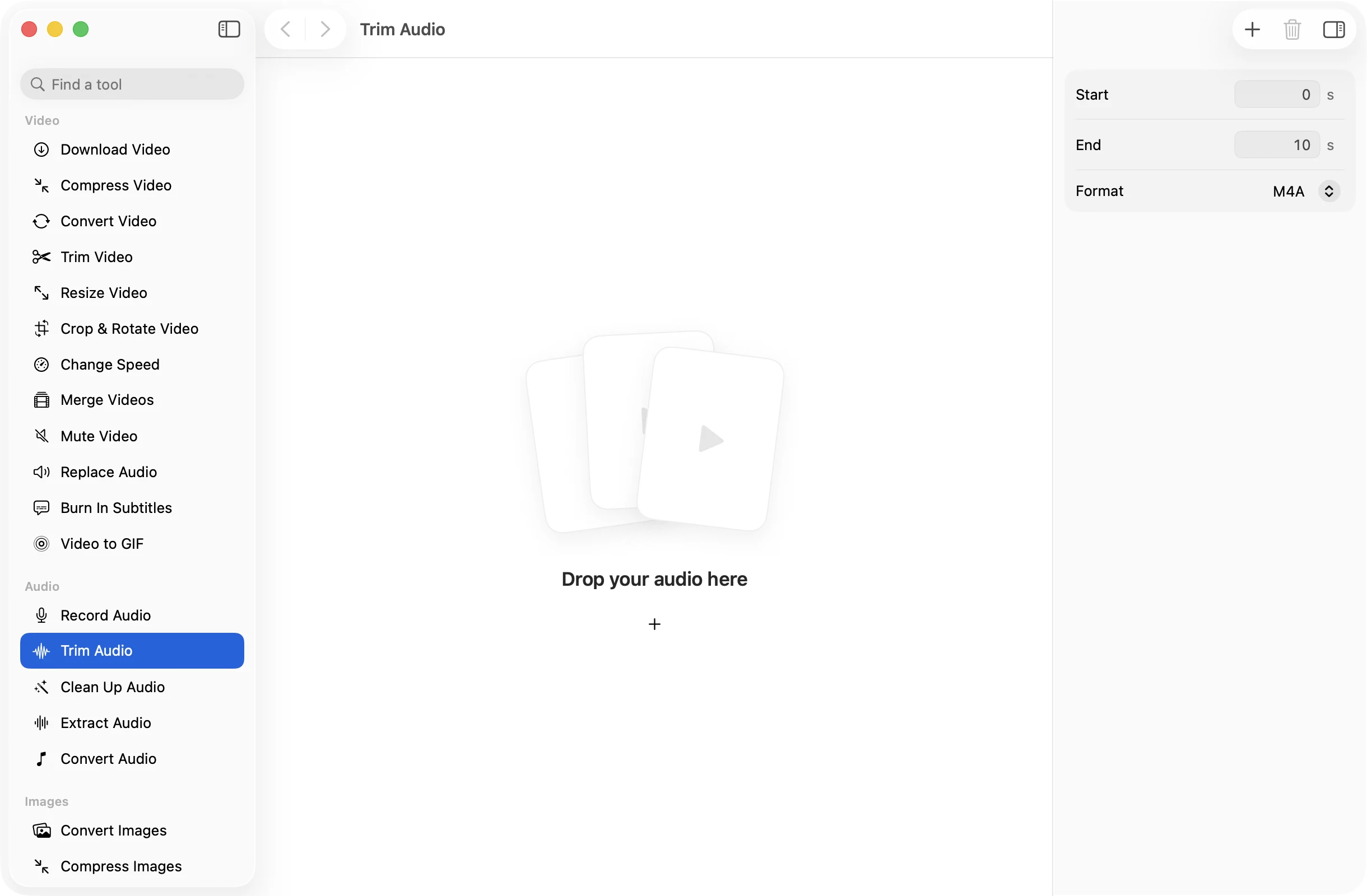
How it works
Three steps.Nothing to learn.
- 1
Drop your audio
MP3, M4A, WAV, AIFF, FLAC, OGG and Opus all open. With one file, you get its waveform to work on.
- 2
Set the range
Drag the ends of the range on the waveform and listen as you go. For a batch, type a start and end in seconds and every file is cut the same way.
- 3
Press Trim
The trimmed copy is saved in the format you chose to a dated OneMacApp folder in Downloads. The original is left alone.
The details
Everything you’d want.Nothing you wouldn’t.
See what you’re cutting
A single file opens on a waveform, so pauses and loud bits are easy to spot. The editor shows how much you’re keeping as you drag.
Undo as you go
Try a cut, change your mind, and step back with ⌘Z. Reset puts the whole file back if you want to start over.
Save in the format you need
Keep it as M4A, or save the trimmed part as MP3, WAV or FLAC in the same step, without a separate conversion.
Same cut for many files
Drop a batch and type one start and end time. Handy for removing the same intro from a set of recordings.
Trim Audio
- Opens
- MP3, M4A, WAV, AIFF, FLAC, OGG, Opus
- Saves as
- M4A, MP3, WAV or FLAC
- Settings
- Start and end, to a hundredth of a second
- Batch
- One start and end for every file
- Originals
- Never changed
- Needs
- FFmpeg, installed for you in one click
FAQ
Questions,answered.
Drop the MP3 into Trim Audio, drag the ends of the range on the waveform to the part you want to keep, choose MP3 as the format and press Trim. The trimmed copy goes to a dated OneMacApp folder in Downloads.
Yes. With more than one file, the inspector shows Start and End fields in seconds and the same cut is applied to every file. If one file is shorter than your end time, the app tells you where the shortest one ends.
The trimmed part is saved again in the format you pick. WAV and FLAC keep every detail. M4A and MP3 are compressed, so choose WAV or FLAC if you plan to edit the result further.
No. OneMacApp always writes a new file and never touches the one you dropped in.
Audio tools use FFmpeg. If it is not on your Mac yet, OneMacApp installs it through Homebrew with one button, or you can point it at a copy you already have.
More audio tools
Same app.Plenty more to do.

Trim Audio is one of 39 tools in OneMacApp.
Video, audio, images, PDFs and on-device AI in one native Mac app. Pay once and every tool is yours, including the ones we add next.
Get OneMacApp · $29₹1,499One-time purchase · macOS 26 or later