Convert imagesto the format you need.
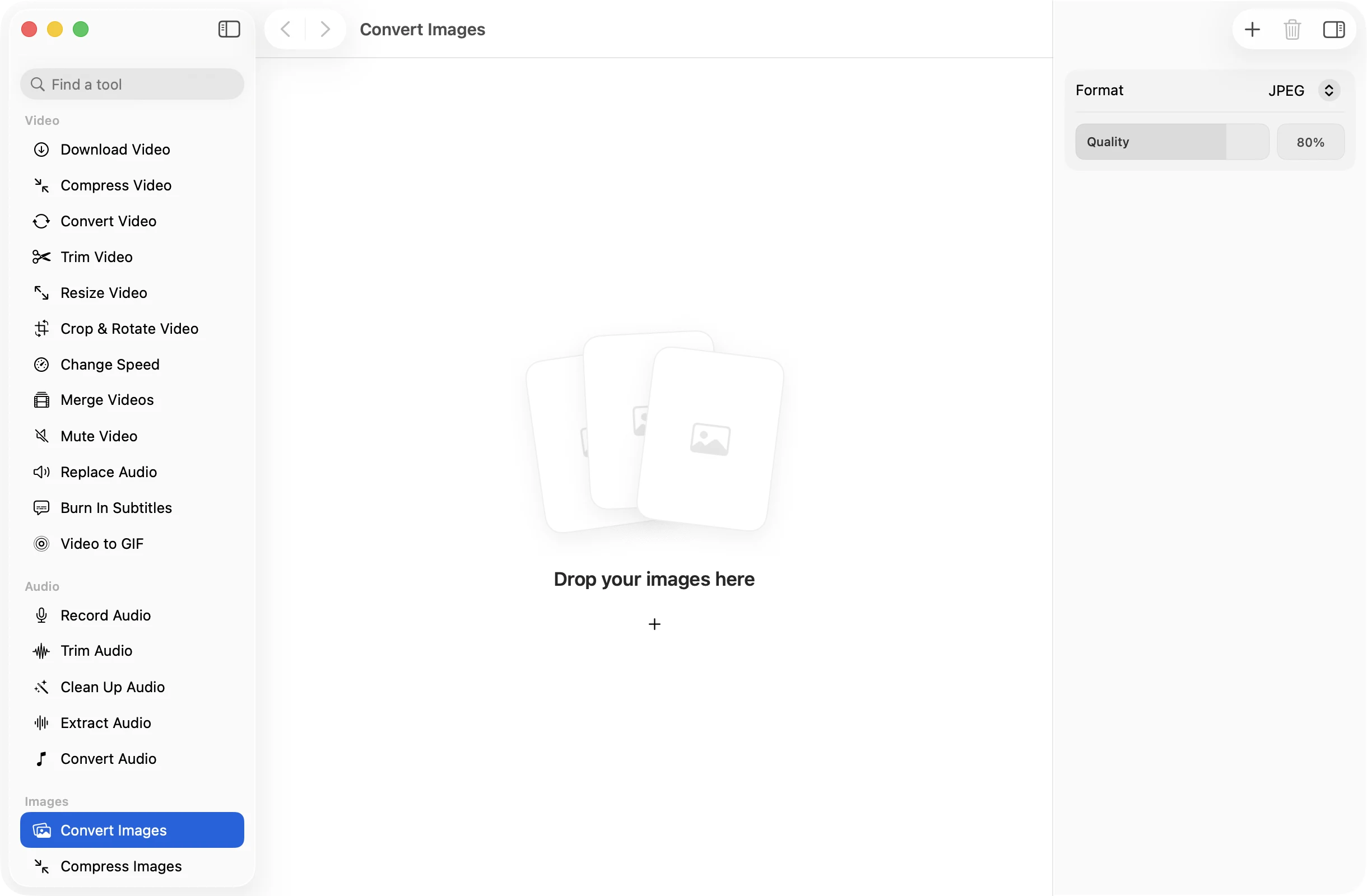
Turn iPhone HEIC photos into JPEGs, screenshots into WebP, or a folder of TIFFs into PNGs. Every image in the batch is converted on your Mac, and the originals stay as they were.
One-time purchase · macOS 26 or later · Works offline
How it works
Three steps.Nothing to learn.
- 1
Drop your images
Drag in a single photo or a whole folder. HEIC, JPEG, PNG, TIFF, WebP and the other image formats your Mac can open all work.
- 2
Choose a format
Pick JPEG, PNG, HEIC, TIFF or WebP. For JPEG, HEIC and WebP a quality slider sets the balance between size and detail.
- 3
Press Convert
The new files land together in a dated OneMacApp folder in Downloads. Your originals are never changed or replaced.
The details
Everything you’d want.Nothing you wouldn’t.
Five formats out
Save as JPEG, PNG, HEIC, TIFF or WebP. Use JPEG for anything you plan to share, PNG or TIFF when every pixel matters, and HEIC or WebP for small files.
HEIC to JPEG in one go
iPhone photos that won’t open on other computers become ordinary JPEGs. Photos come out the right way up, whatever the camera recorded.
Clean files
Converted images are saved without their metadata, so location, camera details and dates are left behind. Transparent areas turn white in a JPEG.
Private by design
Conversion runs on your Mac. Your photos are never sent anywhere, and there is no limit on how many you convert at once.
Convert Images
- Opens
- HEIC, JPEG, PNG, TIFF, WebP and other formats macOS reads
- Saves as
- JPEG, PNG, HEIC, TIFF or WebP
- Settings
- Format, and quality from 10% to 100% for JPEG, HEIC and WebP
- Batch
- Any number of images at once
- Originals
- Never changed
- Needs
- Nothing extra, except FFmpeg for WebP output
FAQ
Questions,answered.
Drop your HEIC photos in, set Format to JPEG and press Convert. You get a JPEG for each photo in a new folder in Downloads, and the HEIC files stay where they were.
Yes. macOS can read WebP but can’t write it, so WebP export uses FFmpeg. If it isn’t on your Mac yet, OneMacApp installs it with one button. The other formats need nothing extra.
The default of 80% looks the same as the original to most people while keeping files small. PNG and TIFF are lossless, so there is no quality slider for them.
PNG, HEIC, TIFF and WebP keep transparency. JPEG has no transparency, so transparent areas are filled with white.
No. Converted images are saved without metadata, so GPS location, camera details and capture dates are not carried over.
More images tools
Same app.Plenty more to do.

Convert Images is one of 39 tools in OneMacApp.
Video, audio, images, PDFs and on-device AI in one native Mac app. Pay once and every tool is yours, including the ones we add next.
Get OneMacApp · $29₹1,499One-time purchase · macOS 26 or later