Clean up audioso voices come through.
Turn down the hiss, rumble and hum in a recording and even out the volume so nobody has to reach for the dial. Hear a before and after first, then save.
One-time purchase · macOS 26 or later · Works offline
How it works
Three steps.Nothing to learn.
- 1
Drop your recordings
Interviews, lectures, voice notes, podcast takes. MP3, M4A, WAV, AIFF, FLAC, OGG and Opus all open.
- 2
Choose how much to clean
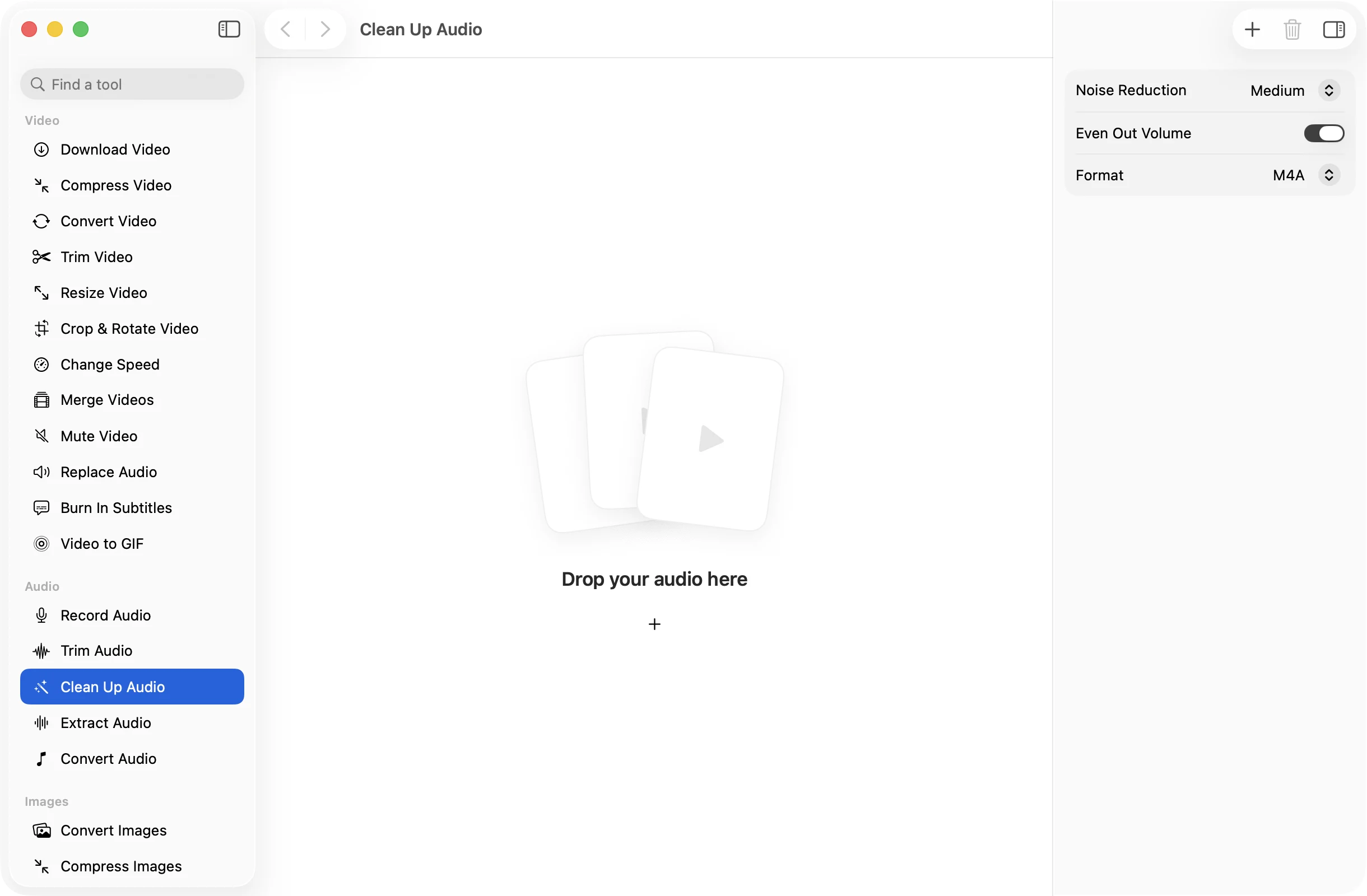
Pick Light, Medium or Strong noise reduction and leave Even Out Volume on. With one file, Preview Clean-Up lets you switch between before and after.
- 3
Press Clean Up
Cleaned copies are saved to a dated OneMacApp folder in Downloads. The originals stay as they were, in case you want to try another level.
The details
Everything you’d want.Nothing you wouldn’t.
Less hiss and hum
Noise reduction lowers steady background sound like fans, air conditioning and room hiss, and low rumble below 70 Hz is filtered out too.
One steady level
Even Out Volume brings quiet and loud parts to a consistent level of −16 LUFS, a common target for podcasts and spoken audio.
Hear it before you save
Preview Clean-Up processes 20 seconds from the playhead, then lets you flip between the original and the cleaned version.
Stays on your Mac
Cleaning runs locally with FFmpeg. Private calls, interviews and lectures are never uploaded anywhere.
Clean Up Audio
- Opens
- MP3, M4A, WAV, AIFF, FLAC, OGG, Opus
- Saves as
- M4A, MP3, WAV or FLAC
- Noise reduction
- Light, Medium or Strong
- Even Out Volume
- −16 LUFS, peaks kept under −1.5 dB
- Preview
- 20 seconds, before and after
- Needs
- FFmpeg, installed for you in one click
FAQ
Questions,answered.
Drop the file into Clean Up Audio, choose a Noise Reduction level and press Clean Up. Start with Medium. Use Preview Clean-Up to hear 20 seconds before you save the whole file.
Light is for a faint hiss. Medium suits most rooms. Strong removes more, but can make a voice sound thinner, so preview it before you commit.
It brings the whole recording to a consistent loudness, so a quiet speaker and a loud one sit closer together. It aims for −16 LUFS, a level that works well for podcasts and voice.
No. It is made for steady background noise like hiss, hum and fan sound. Sounds that come and go, such as music, talking or a door, will mostly stay.
Clean Up Audio works on audio files. Run Extract Audio on the video first, clean up the result, then put it back with Replace Audio.
More audio tools
Same app.Plenty more to do.

Clean Up Audio is one of 39 tools in OneMacApp.
Video, audio, images, PDFs and on-device AI in one native Mac app. Pay once and every tool is yours, including the ones we add next.
Get OneMacApp · $29₹1,499One-time purchase · macOS 26 or later