Burn in subtitlesthat show on every screen.
Let your Mac transcribe what’s said, or bring an SRT you already have, and the captions are drawn into the picture. They show up on any player, even with the sound off.
One-time purchase · macOS 26 or later · Works offline
How it works
Three steps.Nothing to learn.
- 1
Drop your videos
Add a clip with speech in it. With one video open you can generate the captions and watch them over the picture first.
- 2
Choose the captions
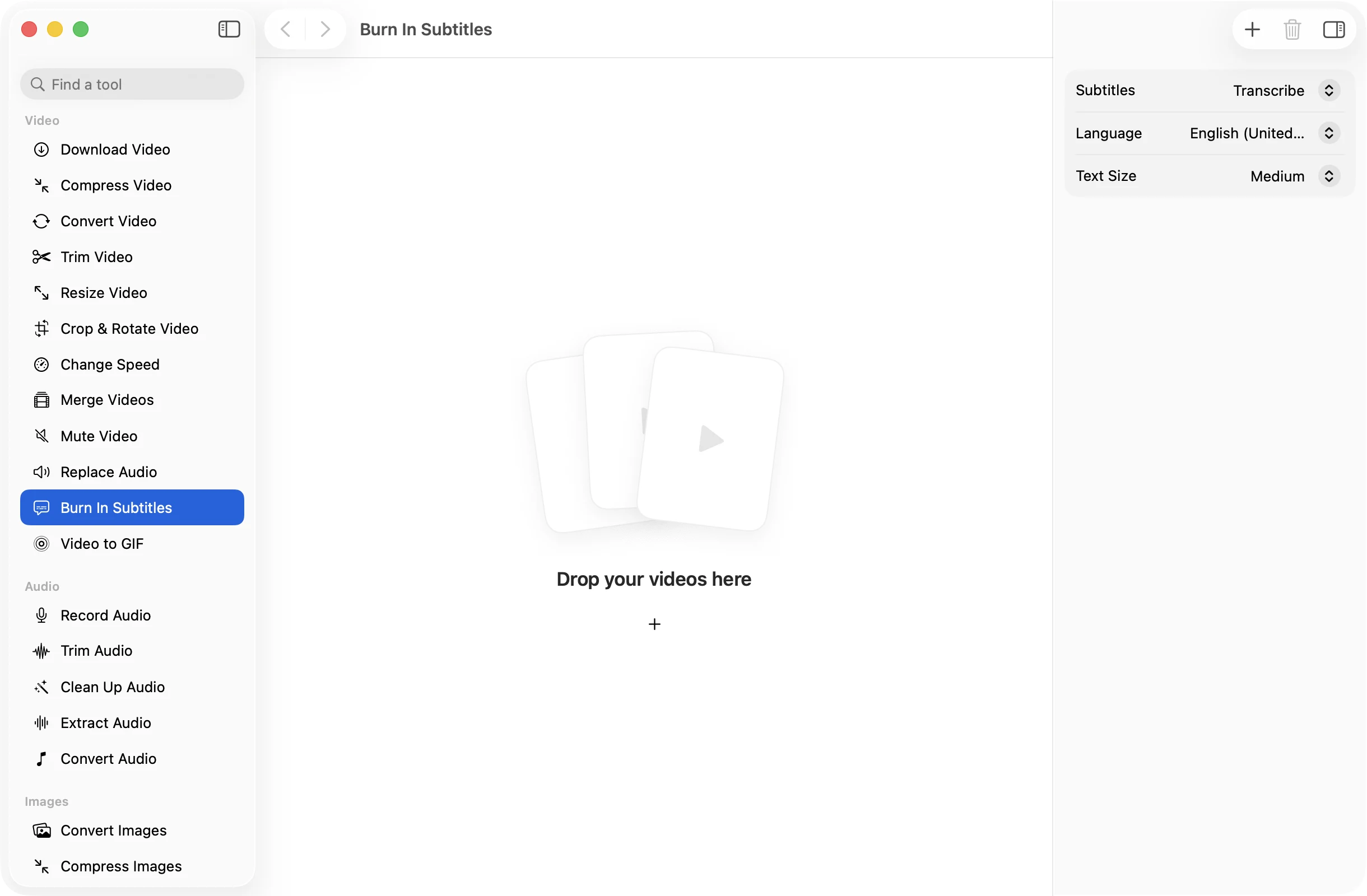
Pick Transcribe and a language, or From File and choose an SRT. Then pick Small, Medium or Large text.
- 3
Press Burn In
The captioned MP4 is saved in a dated OneMacApp folder in Downloads. Your original stays clean.
The details
Everything you’d want.Nothing you wouldn’t.
Transcribed on your Mac
Speech is turned into captions with Apple’s on-device transcription. The language is downloaded once, then it works offline.
Or bring your own SRT
Already have subtitles, or translated some with Translate? Choose the SRT file and it is drawn in as it is.
Shows everywhere
Burned-in captions are part of the picture, so they appear on social feeds, in chat apps and on players that ignore subtitle files.
Clean, readable style
White text with a soft outline near the bottom of the frame, in three sizes.
Burn In Subtitles
- Opens
- MOV, MP4, M4V, MKV, WebM, AVI, MTS
- Captions from
- On-device transcription or an SRT file
- Text size
- Small, Medium or Large
- Saves as
- MP4 (H.264, AAC)
- Originals
- Never changed
- Needs
- FFmpeg, installed for you in one click
FAQ
Questions,answered.
Drop the video into Burn In Subtitles, leave it on Transcribe, pick the spoken language and press Burn In. The captions are written and drawn into a new MP4.
No. It uses Apple’s speech recognition on your Mac. The first time you use a language it is downloaded from Apple, and after that it works offline.
Save the captions as an SRT with Transcribe, correct them in any text editor, then use From File here to burn in your edited version.
Normal subtitles live in a separate file that the player can switch on or off. Burned-in subtitles are part of the picture, so they always show and cannot be turned off.
SRT files. If yours is in another format, most subtitle editors can save it as SRT.
More video tools
Same app.Plenty more to do.

Burn In Subtitles is one of 39 tools in OneMacApp.
Video, audio, images, PDFs and on-device AI in one native Mac app. Pay once and every tool is yours, including the ones we add next.
Get OneMacApp · $29₹1,499One-time purchase · macOS 26 or later