Compress videoright on your Mac.
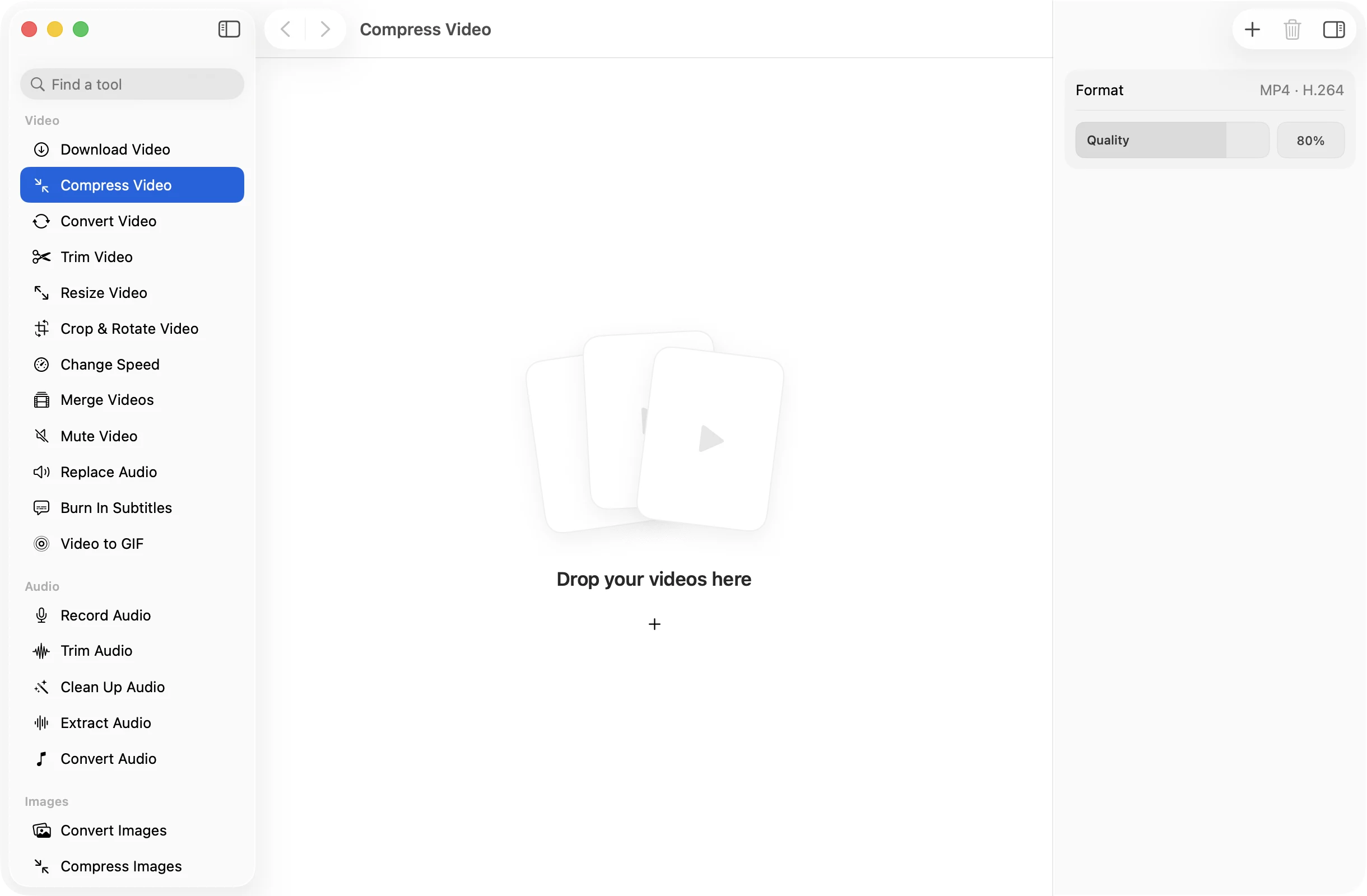
Drop in a screen recording, a phone clip or a whole folder of footage, pick how much to squeeze, and get MP4s small enough to send. Nothing is uploaded and your originals stay as they were.
One-time purchase · macOS 26 or later · Works offline
How it works
Three steps.Nothing to learn.
- 1
Drop your videos
Drag in one clip or fifty. MOV, MP4, M4V, MKV, WebM, AVI and MTS all work, and every file in the batch gets the same treatment.
- 2
Pick a quality
One slider. Slide left for the smallest file, right to keep more detail. 70% is a good place to start for anything you plan to share.
- 3
Press Compress
The new MP4s land together in a dated OneMacApp folder in Downloads. Your originals are never touched or replaced.
The details
Everything you’d want.Nothing you wouldn’t.
Plays everywhere
Output is H.264 MP4 with AAC audio, the format every phone, browser, chat app and editor already understands.
Ready for the web
Files are written with fast start, so a video posted to a site or shared by link begins playing before it has fully downloaded.
No size limit
An hour of 4K is as welcome as a ten second clip. There is no upload to wait for, no cap, and no watermark on the result.
Private by design
Compression runs on your Mac with FFmpeg. Your footage is never sent anywhere, so it is safe for client work and family videos alike.
Compress Video
- Opens
- MOV, MP4, M4V, MKV, WebM, AVI, MTS
- Saves as
- MP4 (H.264 video, AAC 128 kbps audio)
- Settings
- Quality, from 10% to 100%
- Batch
- Any number of files at once
- Originals
- Never changed
- Needs
- FFmpeg, installed for you in one click
FAQ
Questions,answered.
It depends on the source. Phone videos and screen recordings often shrink by 60 to 80 percent at the default quality, because they are recorded at a much higher bitrate than they need. Footage that is already compressed shrinks less.
No. Compress Video keeps the original dimensions and frame rate and only changes how efficiently the picture is stored. If you also want a smaller frame, run the result through Resize Video.
Around 70% looks the same as the original to most people while saving a lot of space. Go lower for something that only needs to be watched once, such as a quick screen recording, and higher for footage you plan to edit later.
Yes. Lower the quality until the file fits the limit. Because the result is a standard MP4, it plays in Mail, Messages, WhatsApp, Slack and in any browser.
Video tools use FFmpeg. If it is not on your Mac yet, OneMacApp installs it through Homebrew with one button, or you can point it at a copy you already have.
More video tools
Same app.Plenty more to do.

Compress Video is one of 39 tools in OneMacApp.
Video, audio, images, PDFs and on-device AI in one native Mac app. Pay once and every tool is yours, including the ones we add next.
Get OneMacApp · $29₹1,499One-time purchase · macOS 26 or later