Compress imageswithout the blur.
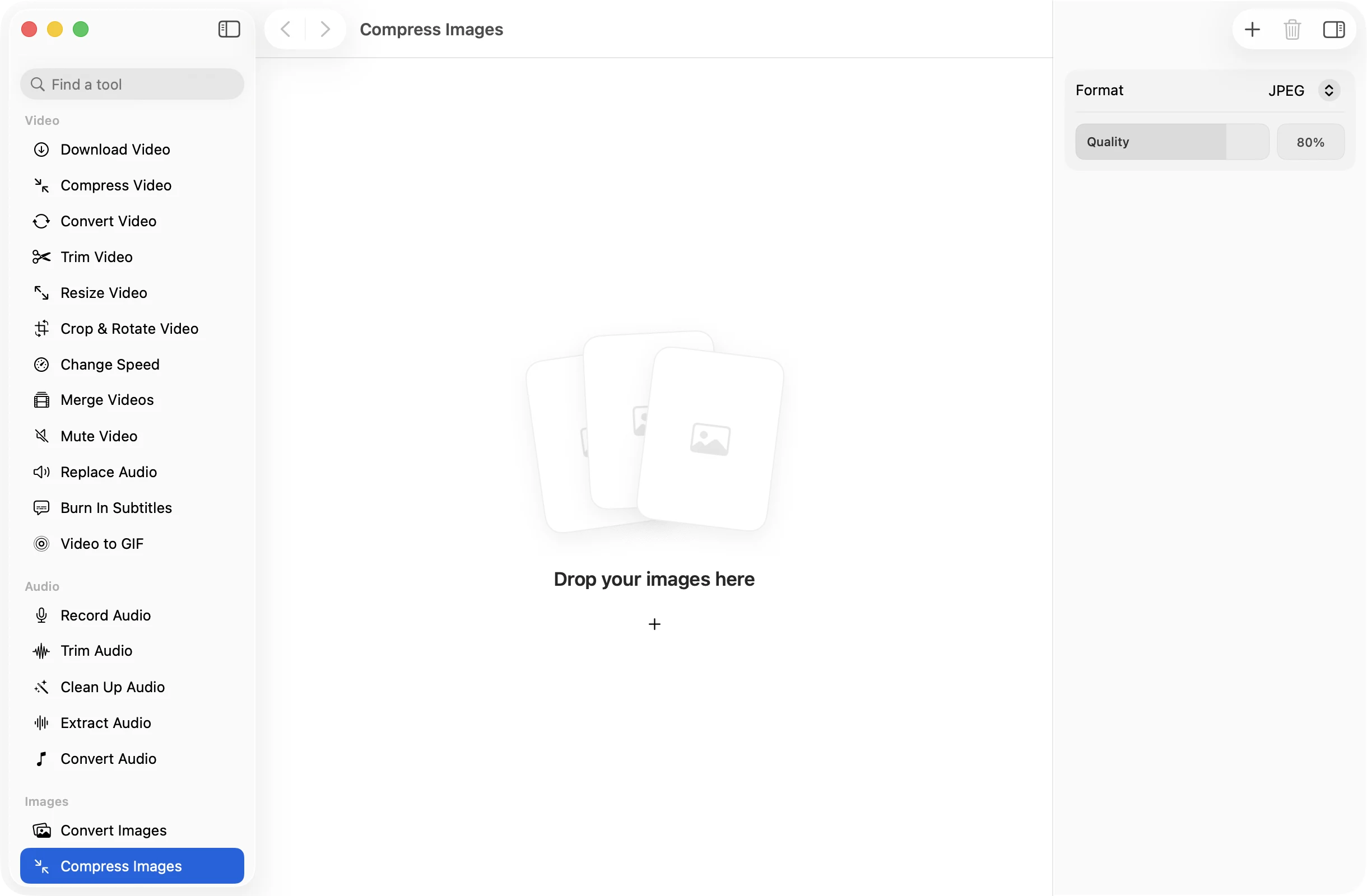
Shrink photos for email, a website or a full disk, and see exactly how the result looks and how big it is before you save. Everything happens on your Mac.
One-time purchase · macOS 26 or later · Works offline
How it works
Three steps.Nothing to learn.
- 1
Drop your images
Drag in one photo or a folder full. Every image in the batch gets the same format and quality.
- 2
Set the quality
Pick an image to see it before and after, with the new file size, while you move the slider. Stop where it still looks right.
- 3
Press Compress
The smaller images land together in a dated OneMacApp folder in Downloads. Your originals are never touched.
The details
Everything you’d want.Nothing you wouldn’t.
See it before you save
A side by side preview shows the original next to the compressed version and how many bytes it will take, so you never guess.
Pick the format too
Compress to JPEG, HEIC or WebP for the smallest files, or PNG and TIFF when you need them lossless.
Same dimensions
Compression changes how the picture is stored, not its size in pixels. To make it smaller on screen as well, use Resize Images.
Private by design
Images are compressed on your Mac and saved without their metadata. Nothing is uploaded and there is no limit on how many you do.
Compress Images
- Opens
- HEIC, JPEG, PNG, TIFF, WebP and other formats macOS reads
- Saves as
- JPEG, PNG, HEIC, TIFF or WebP
- Settings
- Format, and quality from 10% to 100%
- Preview
- Before and after, with the new file size
- Batch
- Any number of images at once
- Originals
- Never changed
FAQ
Questions,answered.
It depends on the image and the format you pick. Large camera photos and PNG screenshots saved as JPEG or HEIC often shrink a lot. The preview shows the exact new size before you save.
Start at 70 to 80 percent. Most photos look the same as the original there while taking far less space. Go lower for thumbnails and quick shares.
You can save as PNG, but PNG is lossless, so there is no quality slider and savings are small. For a much smaller file, save as JPEG, HEIC or WebP.
No. The width and height stay the same. Use Resize Images if you also want fewer pixels.
Yes. Compressed images are saved without metadata, which also saves a little space.
More images tools
Same app.Plenty more to do.

Compress Images is one of 39 tools in OneMacApp.
Video, audio, images, PDFs and on-device AI in one native Mac app. Pay once and every tool is yours, including the ones we add next.
Get OneMacApp · $29₹1,499One-time purchase · macOS 26 or later