Translate documentsand subtitles, offline.
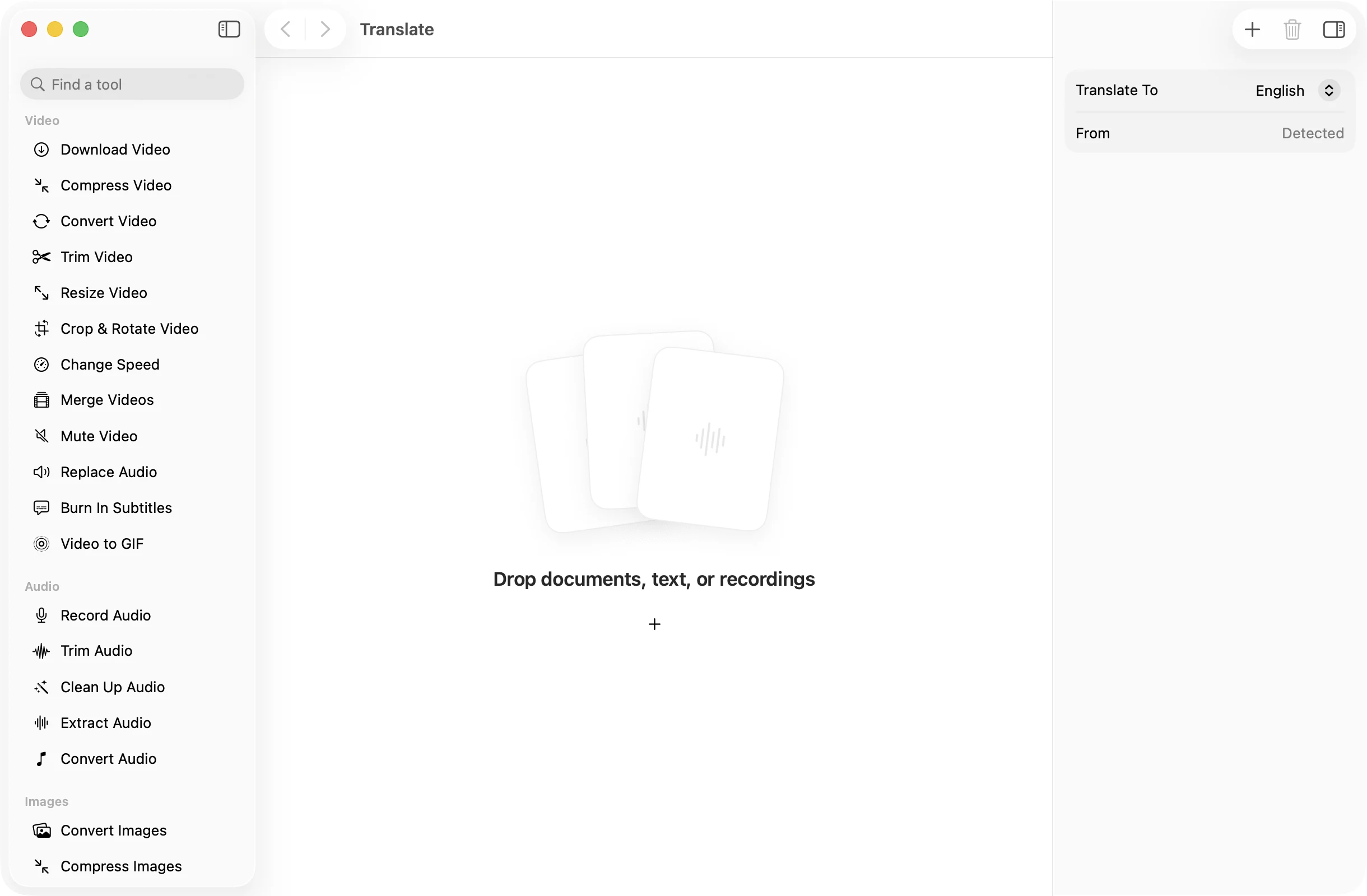
Drop in a text file, a PDF or a subtitle file, pick the language you want, and get a translated copy. Once a language is on your Mac, it all works without a connection.
One-time purchase · macOS 26 or later · Works offline
How it works
Three steps.Nothing to learn.
- 1
Drop your files
Text, Markdown and SRT files, PDFs and images of text all work. You do not need to say what language they are in.
- 2
Pick a language
Choose the language to translate into. It starts on your Mac’s own language. The source language is detected for you.
- 3
Press Translate
Translated copies land in a dated OneMacApp folder in Downloads and show up in the app. Your originals stay as they were.
The details
Everything you’d want.Nothing you wouldn’t.
Subtitles stay subtitles
Drop an SRT and you get an SRT back. The numbering and timings are kept and only the captions are translated, so it still lines up with the video.
Works offline
Translation uses the languages Apple lets you download to your Mac. Once both languages are installed, no connection is needed.
Reads scans and photos
PDFs and images are read with on-device OCR first, so a photo of a sign or a scanned letter can be translated too.
Private by design
Your documents are not uploaded. Everything happens on your Mac with Apple’s Translation framework.
Translate
- Opens
- TXT, Markdown, SRT, PDF and images
- Saves as
- TXT, or SRT for subtitle files
- Source language
- Detected automatically
- Engine
- Apple Translation, on-device
- Batch
- Any number of files at once
- Originals
- Never changed
FAQ
Questions,answered.
Yes, once the languages you need are on your Mac. Download them in System Settings › General › Language & Region › Translation Languages, and translation works offline from then on.
Drop the SRT, pick the language you want and press Translate. You get a new SRT with the same numbering and timings and the captions in the new language.
The ones Apple’s Translation framework offers on your Mac. The Translate To menu lists them. If a language pair is not supported, OneMacApp tells you.
No. The source language is detected from the text. If a file is already in the language you picked, OneMacApp lets you know instead of making a copy.
Yes. The text is read from the page with on-device OCR first, then translated and saved as a text file.
More AI tools
Same app.Plenty more to do.

Translate is one of 39 tools in OneMacApp.
Video, audio, images, PDFs and on-device AI in one native Mac app. Pay once and every tool is yours, including the ones we add next.
Get OneMacApp · $29₹1,499One-time purchase · macOS 26 or later