Record audioand keep the words too.
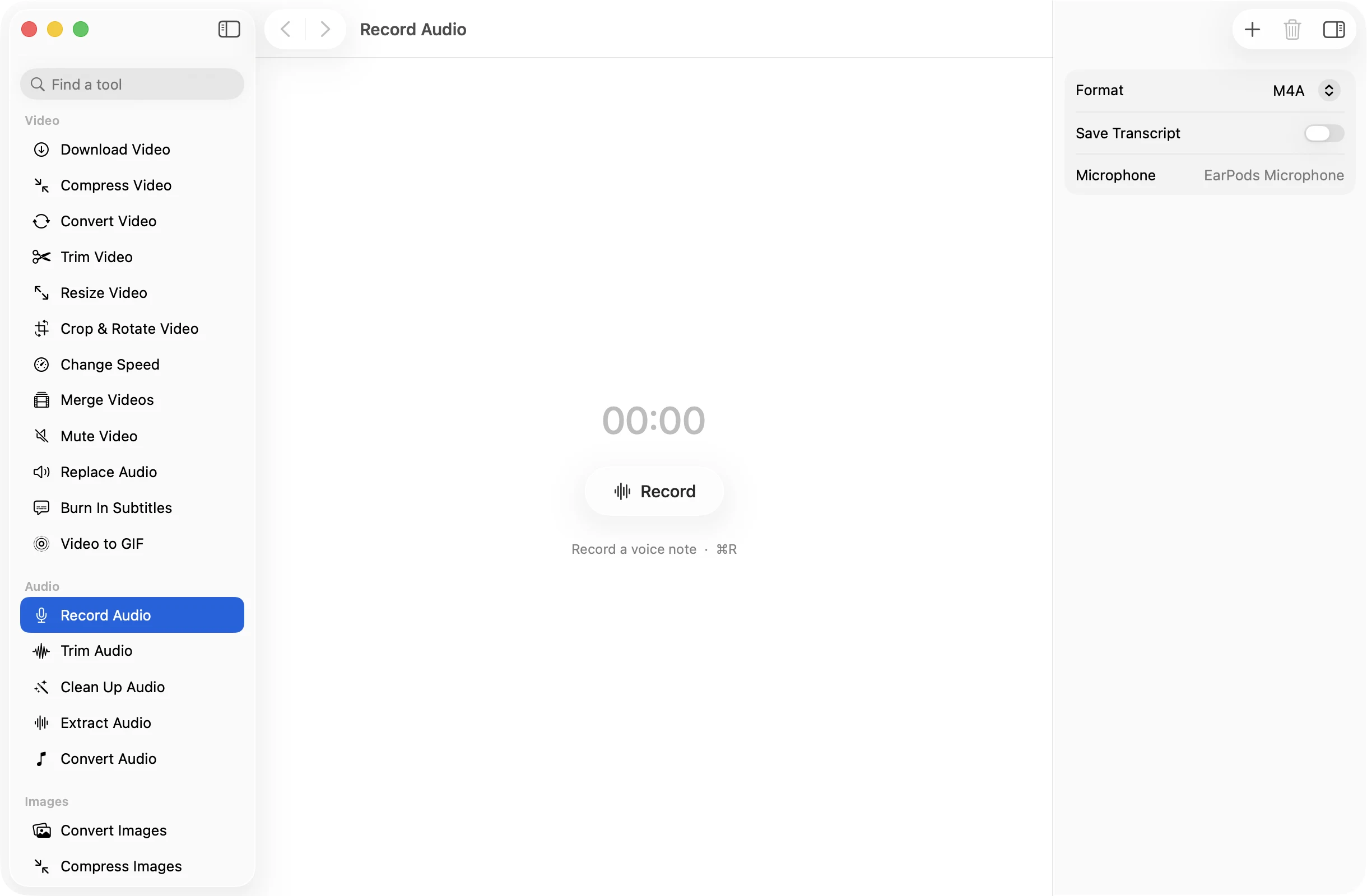
Press ⌘R, talk, and press it again. Each take is saved as M4A or WAV, with a text transcript beside it if you want one, all made on your Mac.
One-time purchase · macOS 26 or later · Works offline
How it works
Three steps.Nothing to learn.
- 1
Press record
Click Record or press ⌘R. A live level meter shows the mic is hearing you, and a click on the waveform pauses or resumes the take.
- 2
Stop when you’re done
Each take joins the list with its length, so you can record several in a row and save them together.
- 3
Press Save
Your recordings land in a dated OneMacApp folder in Downloads, as M4A or WAV, with a TXT transcript next to each one if you turned it on.
The details
Everything you’d want.Nothing you wouldn’t.
Transcripts on your Mac
Turn on Save Transcript and every take also comes out as plain text, written by Apple’s on-device speech recognition. After a one-time language download it works offline.
Pause without a new file
Stepped away mid-thought? Pause and pick up again in the same recording, so one idea stays in one file.
Clear, compact sound
Takes are recorded as 48 kHz AAC at 192 kbps, which keeps a voice clear while an hour stays small enough to send.
No FFmpeg needed
Recording uses the Mac’s own audio tools, so it works straight away. Your voice is never sent anywhere.
Record Audio
- Records
- Your Mac’s default microphone, mono
- Recorded as
- AAC, 48 kHz, 192 kbps
- Saves as
- M4A or WAV (16-bit)
- Transcript
- Optional TXT, made on your Mac
- Shortcut
- ⌘R to start and stop
- Needs
- Microphone access, nothing else
FAQ
Questions,answered.
Open Record Audio and press ⌘R or click Record. Press ⌘R again to stop. The take appears in the list, and Save writes it to a dated OneMacApp folder in your Downloads.
Yes. Turn on Save Transcript, pick the language, and each recording is saved with a TXT file of what was said. Transcription uses Apple’s speech recognition on your Mac, and the language model downloads once before first use.
M4A is small and plays everywhere, which suits voice notes and messages. WAV is uncompressed, so pick it when the recording is going into an audio editor or someone has asked for WAV.
Your Mac’s default input, shown by name in the inspector. To use a USB or headset mic, choose it as the input in System Settings › Sound first.
macOS asks the first time you record. If you said no, turn OneMacApp on in System Settings › Privacy & Security › Microphone and try again.
More audio tools
Same app.Plenty more to do.

Record Audio is one of 39 tools in OneMacApp.
Video, audio, images, PDFs and on-device AI in one native Mac app. Pay once and every tool is yours, including the ones we add next.
Get OneMacApp · $29₹1,499One-time purchase · macOS 26 or later