Convert audioto the format you need.
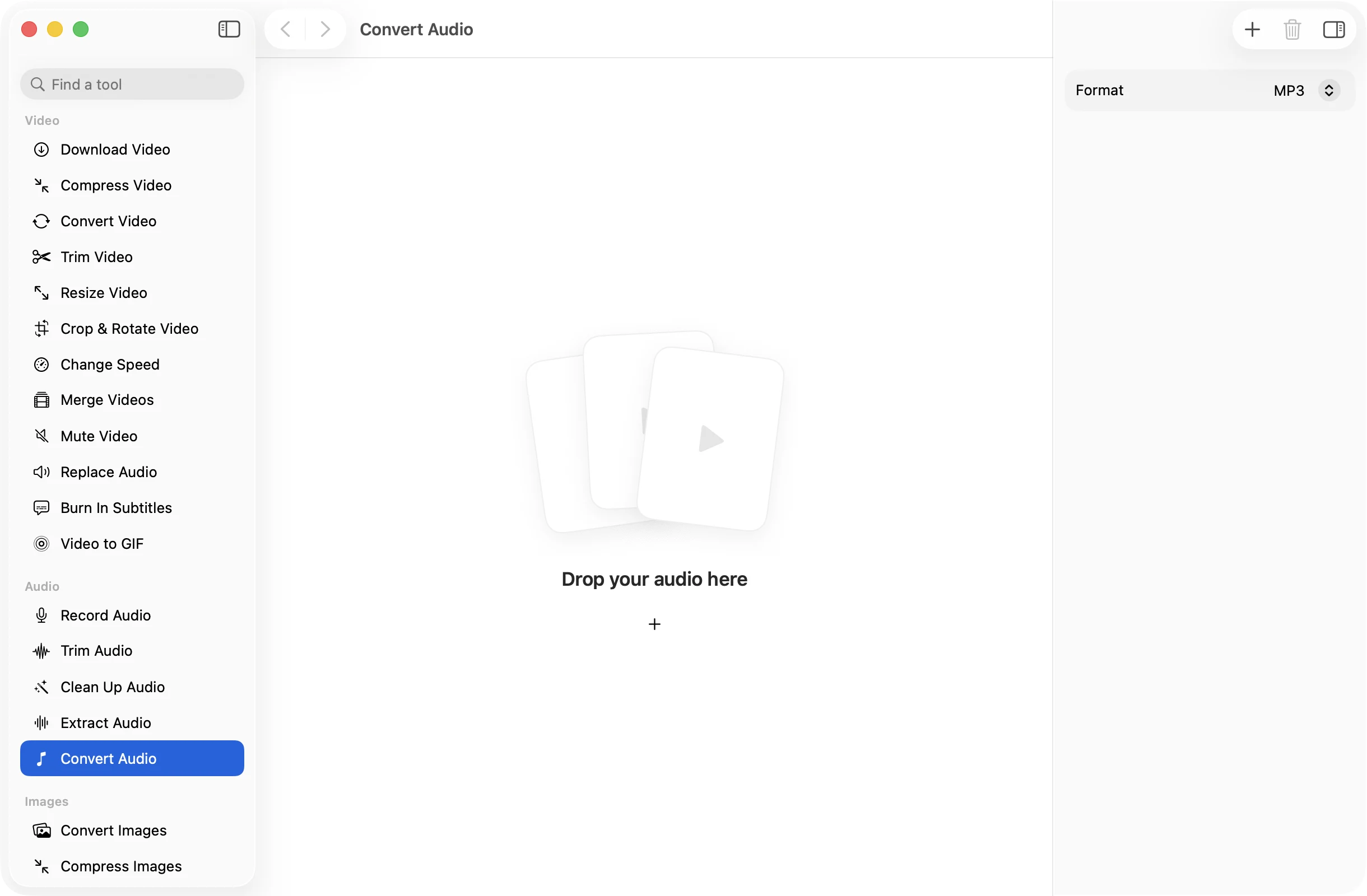
Got a WAV that is too big to send or an OGG that won’t play? Drop it in, pick MP3, M4A, WAV or FLAC, and get a copy that works where you need it.
One-time purchase · macOS 26 or later · Works offline
How it works
Three steps.Nothing to learn.
- 1
Drop your audio
MP3, M4A, WAV, AIFF, FLAC, OGG and Opus all open, and you can mix them in one batch.
- 2
Pick a format
Choose MP3, M4A, WAV or FLAC. Every file in the batch is converted to the same one.
- 3
Press Convert
The converted copies land together in a dated OneMacApp folder in Downloads, named after the originals.
The details
Everything you’d want.Nothing you wouldn’t.
The formats that matter
MP3 for anywhere, M4A for Apple devices, WAV for editors and studios, FLAC for lossless archives.
Opens the odd ones
OGG and Opus files, the kind chat apps and some recorders produce, convert as easily as an MP3.
Good default quality
MP3 uses high-quality variable bitrate and M4A uses AAC at 192 kbps, so music and voice both sound right.
On your Mac only
Conversion runs locally with FFmpeg. There is no upload, no size limit and nothing added to your files.
Convert Audio
- Opens
- MP3, M4A, WAV, AIFF, FLAC, OGG, Opus
- Saves as
- MP3, M4A, WAV or FLAC
- Quality
- MP3 VBR, AAC 192 kbps, 16-bit WAV, lossless FLAC
- Batch
- Any number of files at once
- Originals
- Never changed
- Needs
- FFmpeg, installed for you in one click
FAQ
Questions,answered.
Drop the WAV files into Convert Audio, choose MP3 as the format and press Convert. The MP3s are saved to a dated OneMacApp folder in Downloads, and the WAVs stay where they were.
Yes. Convert Audio opens OGG and Opus and can turn them into MP3 or M4A that play in Music, QuickTime and on iPhone.
No. Converting can’t bring back detail a compressed file has already lost. FLAC and WAV are worth it when the source is already lossless and you want to keep it that way.
MP3 is the safest choice for email and chat because almost everything plays it. M4A is a little smaller for the same quality on Apple devices.
Audio tools use FFmpeg. If it is not on your Mac yet, OneMacApp installs it through Homebrew with one button, or you can point it at a copy you already have.
More audio tools
Same app.Plenty more to do.
Convert Audio is one of 39 tools in OneMacApp.
Video, audio, images, PDFs and on-device AI in one native Mac app. Pay once and every tool is yours, including the ones we add next.
Get OneMacApp · $29₹1,499One-time purchase · macOS 26 or later