Sign a PDFwithout printing it.
Draw your signature once, pick the pages that need it, and save a signed copy in seconds. No printer, no scanner and nothing uploaded.
One-time purchase · macOS 26 or later · Works offline
How it works
Three steps.Nothing to learn.
- 1
Draw your signature
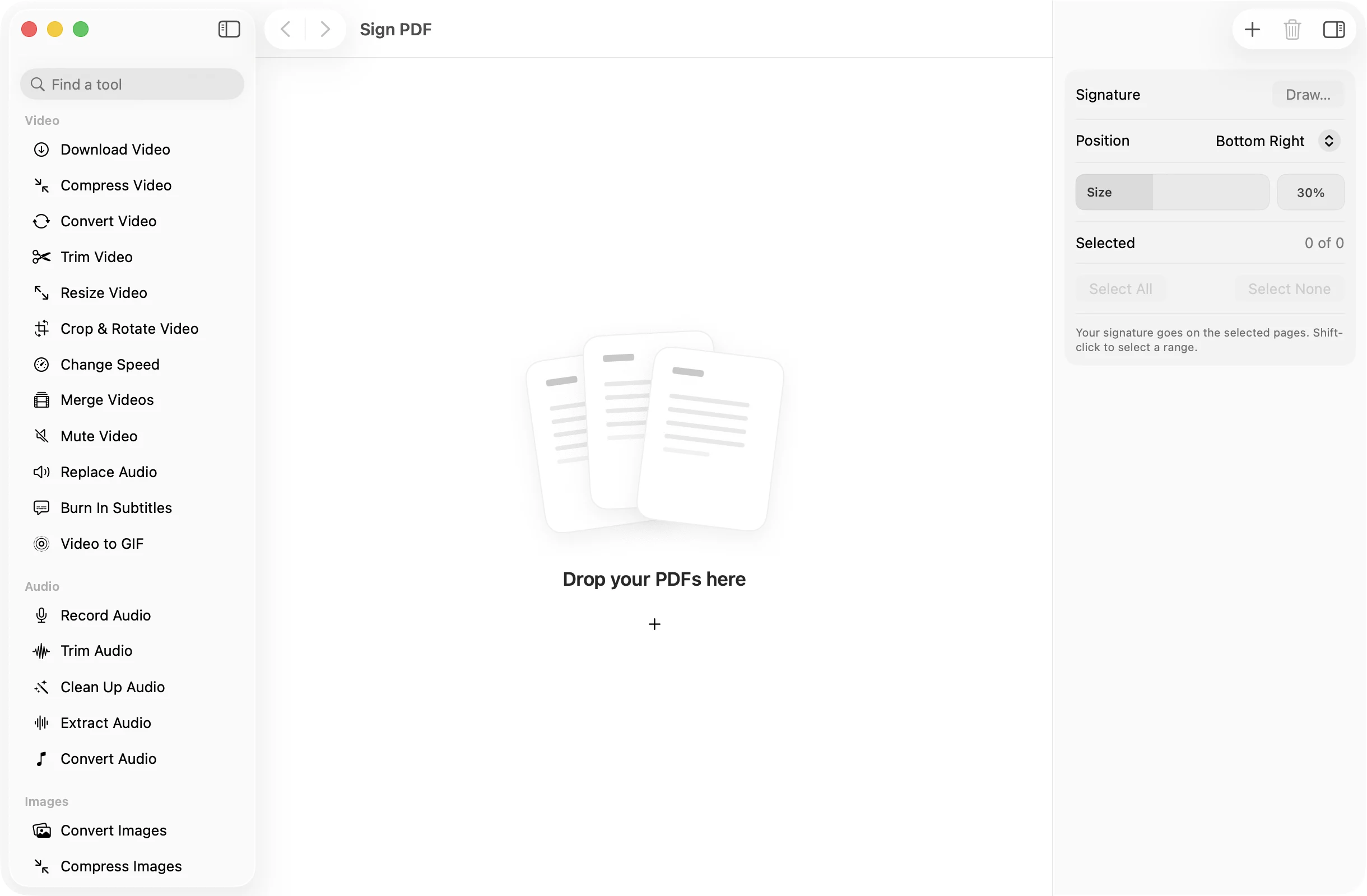
Click Draw in the inspector and sign with your trackpad or mouse. OneMacApp remembers it for next time.
- 2
Pick pages and placement
Click the pages to sign, then choose a position and size. Shift-click to select a run of pages.
- 3
Press Sign
A signed copy of each PDF lands in a dated OneMacApp folder in Downloads. The unsigned original stays as it was.
The details
Everything you’d want.Nothing you wouldn’t.
Draw once, reuse
Your signature is kept on your Mac as a clean transparent image, ready for the next document. Draw it again or clear it at any time.
Four placements
Put the signature at the bottom right, bottom center, bottom left or top right of the page.
Size it to fit
A slider sets the signature from 10% to 60% of the page width, so it sits neatly on a signature line.
Only the pages you choose
Sign the last page, every page, or just the ones with initials boxes. Several PDFs can be signed in one go.
Sign PDF
- Opens
- Saves as
- Signed PDF, one per input file
- Signature
- Drawn with trackpad or mouse, saved for reuse
- Position
- Bottom Right, Bottom Center, Bottom Left, Top Right
- Size
- 10% to 60% of page width
- Originals
- Never changed
FAQ
Questions,answered.
Open Sign PDF, drop in the document, draw your signature, click the pages to sign and press Sign. The signed copy is saved in a new folder in Downloads.
No. Sign PDF places an image of your handwritten signature on the page, the same as signing a printed copy and scanning it. It does not add a cryptographic certificate.
On your Mac only, as a small image in OneMacApp’s Application Support folder. You can draw it again or clear it from the inspector whenever you like.
Yes. Click every page that needs a signature, or use Select All. Shift-click selects a range of pages.
You choose from four spots: bottom right, bottom center, bottom left and top right. The size slider helps it fit the space.
More pdf tools
Same app.Plenty more to do.

Sign PDF is one of 39 tools in OneMacApp.
Video, audio, images, PDFs and on-device AI in one native Mac app. Pay once and every tool is yours, including the ones we add next.
Get OneMacApp · $29₹1,499One-time purchase · macOS 26 or later