Transcribe recordingswithout leaving your Mac.
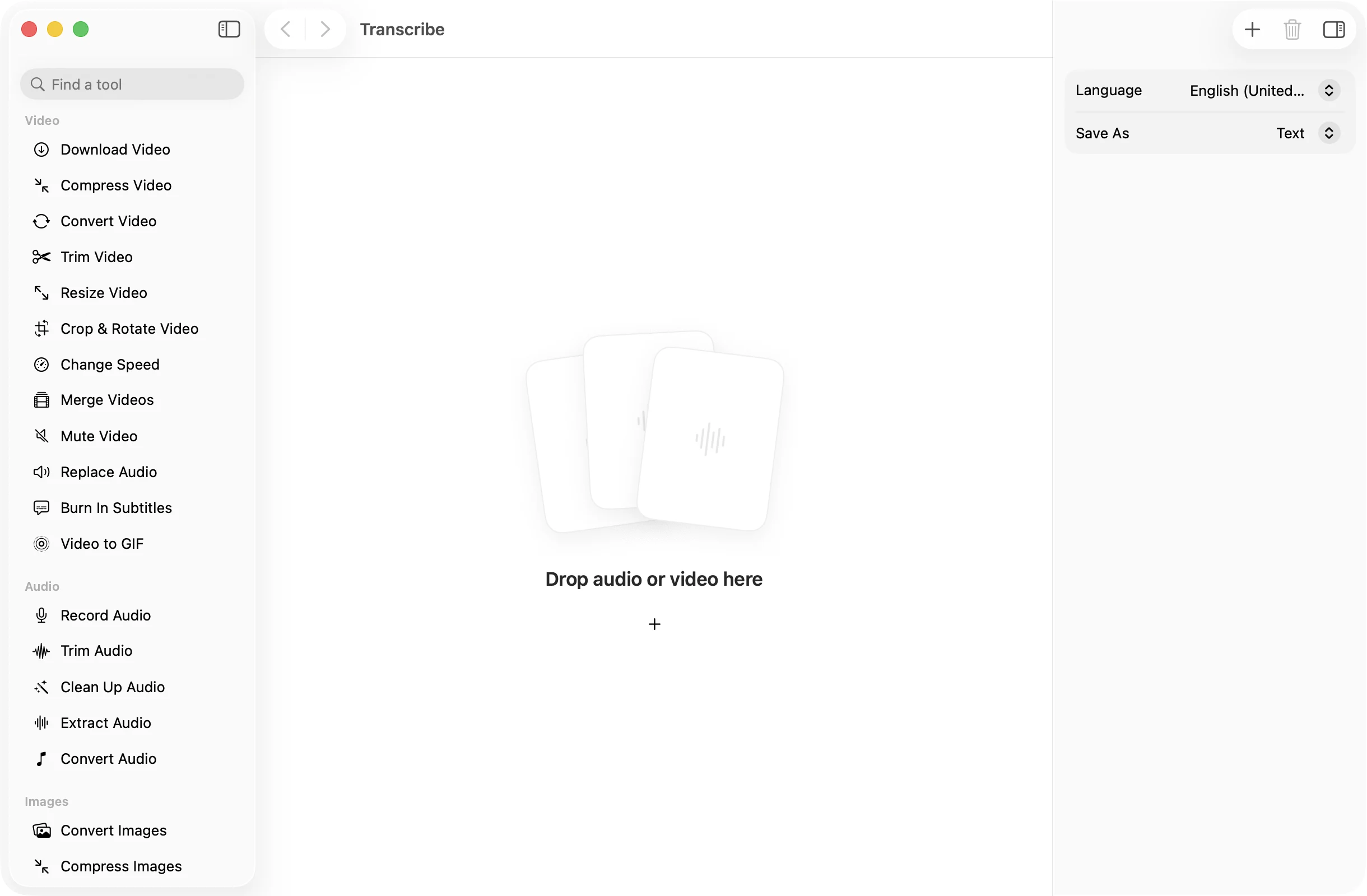
Drop in a meeting, a podcast or a video and get the words back as a text file or timed SRT subtitles. The speech model runs on your Mac, so your recordings stay with you.
One-time purchase · macOS 26 or later · Works offline
How it works
Three steps.Nothing to learn.
- 1
Drop your recordings
Audio or video, one file or a whole batch. Voice memos, Zoom exports, phone videos and podcast episodes all work.
- 2
Pick a language and format
Choose the language that is spoken, then save as plain text or as SRT subtitles. The first time you use a language, download it once from Apple.
- 3
Press Transcribe
Each transcript lands in a dated OneMacApp folder in Downloads, and you can read the result right in the app. Your recordings are left as they were.
The details
Everything you’d want.Nothing you wouldn’t.
Runs on your Mac
Transcription uses Apple’s on-device speech model. Nothing is uploaded, so it is fine for private meetings, interviews and patient or client calls.
Works offline
Once a language is downloaded, you can transcribe on a plane or anywhere else without a connection.
Subtitles with timings
Pick SRT and every line comes with start and end times, ready to load into a video player or editor, or to burn in with Burn In Subtitles.
Audio from video, handled
Drop a video and the soundtrack is pulled out for you. There is nothing to convert first and no extra download needed.
Transcribe
- Opens
- Audio and video files, such as MP3, M4A, WAV, MOV and MP4
- Saves as
- Plain text (TXT) or subtitles (SRT)
- Settings
- Language, and Text or SRT
- Engine
- Apple’s on-device speech recognition
- Batch
- Any number of files at once
- Originals
- Never changed
FAQ
Questions,answered.
No. Transcription runs on your Mac with Apple’s speech model. The only download is the language itself, which comes from Apple the first time you use it.
Yes, once the language you need is on your Mac. Download it once from the inspector and every transcription after that works offline.
Drop the video, set Save As to Subtitles (SRT) and press Transcribe. You get an SRT file with timed lines. To put the captions into the picture itself, use Burn In Subtitles.
The Language menu lists every language Apple’s speech model supports on your Mac. Pick the one that is spoken in the recording for the best result.
OneMacApp tells you when no speech was found. Check that the right language is selected, and try a recording where the voices are clearer.
More AI tools
Same app.Plenty more to do.

Transcribe is one of 39 tools in OneMacApp.
Video, audio, images, PDFs and on-device AI in one native Mac app. Pay once and every tool is yours, including the ones we add next.
Get OneMacApp · $29₹1,499One-time purchase · macOS 26 or later