Remove a PDF passwordyou already know.
Tired of typing the same password every time you open your bank statement? Enter it once and save a copy that opens straight away.
One-time purchase · macOS 26 or later · Works offline
How it works
Three steps.Nothing to learn.
- 1
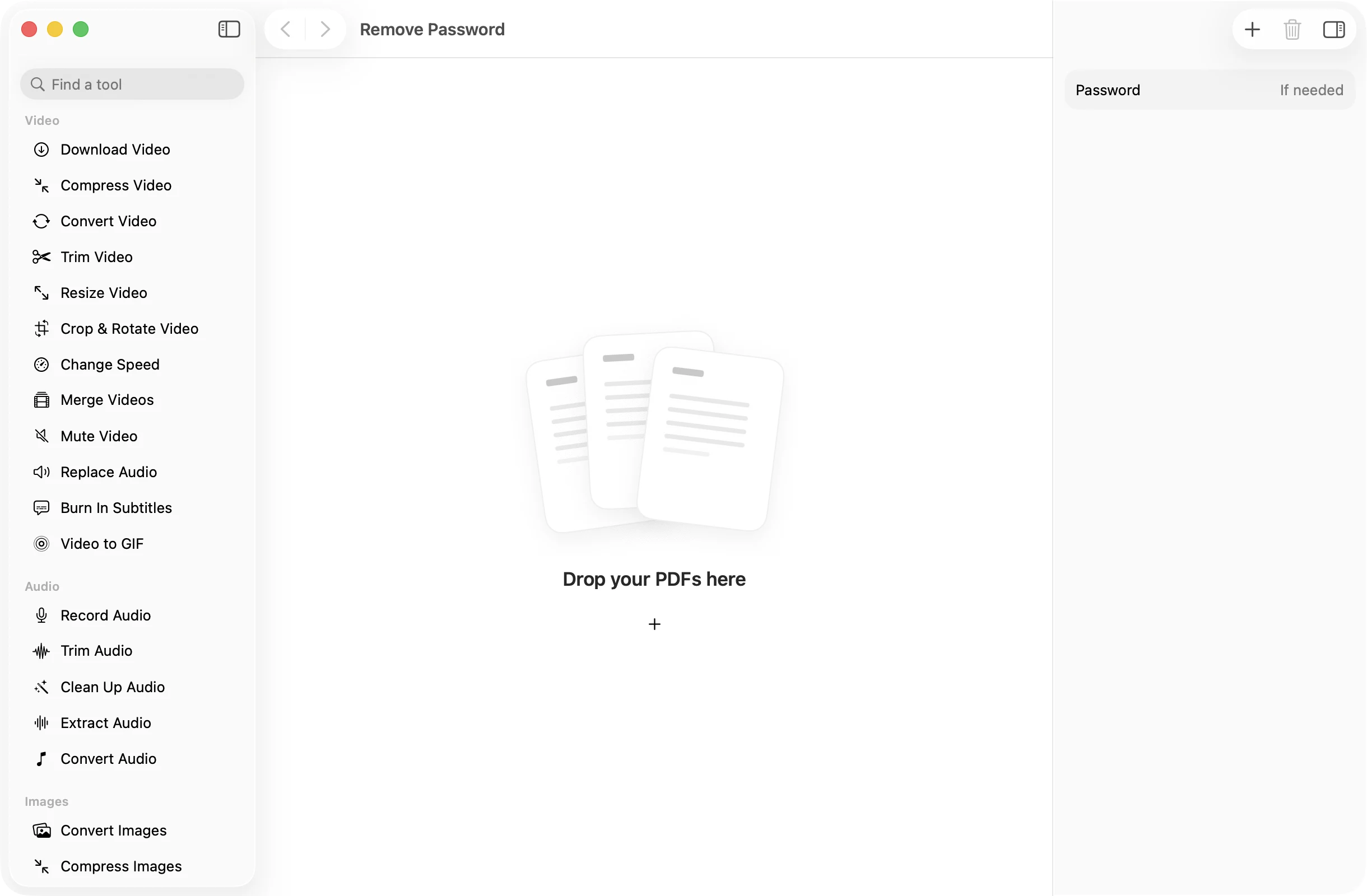
Drop your PDF
Add the protected PDF you want to open freely. It needs to be a document you own or are allowed to unlock.
- 2
Enter its password
Type the password you use to open it. If the file opens without one, you can leave the field empty.
- 3
Press Remove Password
An unlocked copy lands in a dated OneMacApp folder in Downloads. The protected original stays as it was.
The details
Everything you’d want.Nothing you wouldn’t.
Open once, not every time
The unlocked copy opens in any PDF reader without asking, which helps with statements and records you read often.
Ready for other tools
Locked PDFs cannot be merged, split or compressed. Unlock first, then use any other PDF tool on the copy.
Clear when it is wrong
If the password does not match, OneMacApp tells you which file it could not open instead of failing quietly.
Stays on your Mac
The password and the document never leave your computer. Nothing is uploaded to unlock it.
Remove Password
- Opens
- Saves as
- PDF without a password
- Needs
- The password that opens the file
- Batch
- Several files that share a password
- Originals
- Never changed
FAQ
Questions,answered.
Yes. If a PDF asks for a password to open, you have to enter it. OneMacApp does not guess or crack passwords. It is meant for your own documents.
Open Remove Password, drop in the PDF, type its password in the inspector and press Remove Password. The unlocked copy is saved in a new folder in Downloads.
Leave the password field empty. OneMacApp saves a fresh copy of every page without the original file’s protection.
Yes, as long as they use the same password. One password is applied to the whole batch.
No. The protected PDF stays exactly as it was. You get a separate unlocked copy.
More pdf tools
Same app.Plenty more to do.

Remove Password is one of 39 tools in OneMacApp.
Video, audio, images, PDFs and on-device AI in one native Mac app. Pay once and every tool is yours, including the ones we add next.
Get OneMacApp · $29₹1,499One-time purchase · macOS 26 or later