Remove metadatabefore you share.
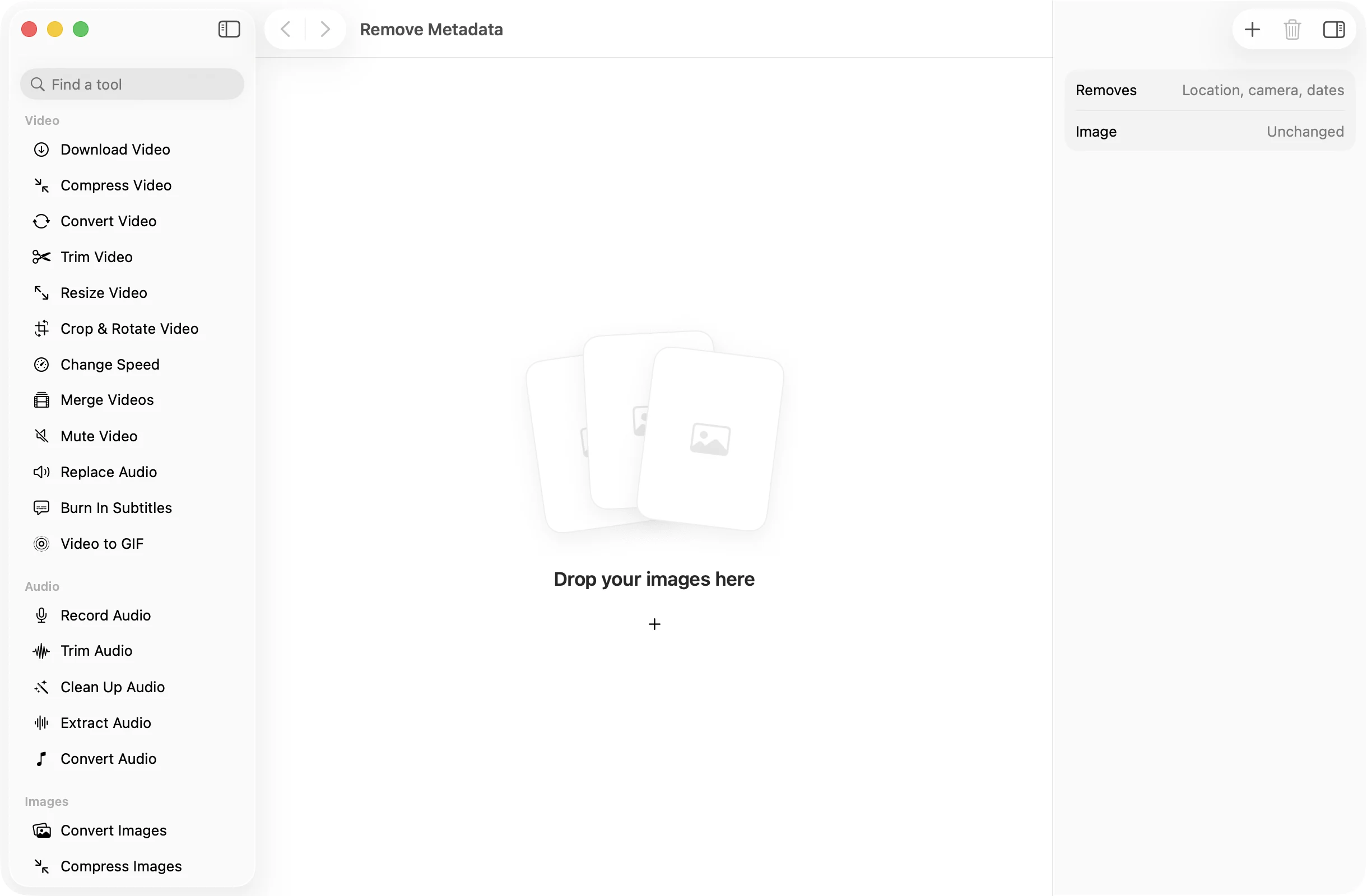
Photos carry where they were taken, which camera took them and when. Drop them in and get clean copies that show only the picture.
One-time purchase · macOS 26 or later · Works offline
How it works
Three steps.Nothing to learn.
- 1
Drop your photos
Drag in the photos you are about to post, send or upload. A whole batch works as easily as one.
- 2
Nothing to set
Location, camera details and dates are always removed. The picture and its format stay as they were.
- 3
Press Remove Metadata
Clean copies land together in a dated OneMacApp folder in Downloads, ready to share. Your originals keep their metadata.
The details
Everything you’d want.Nothing you wouldn’t.
Location gone
GPS coordinates are removed, so a photo of your home, your kids or your desk doesn’t give away where it was taken.
Picture untouched
For most formats the image data is copied as is, with no recompression. A JPEG stays a JPEG and a HEIC stays a HEIC.
Stays upright
The only thing kept is the orientation, so photos don’t turn sideways once the rest of the metadata is gone.
Private by design
It would be odd to upload photos to make them private. Everything happens on your Mac and nothing is sent anywhere.
Remove Metadata
- Opens
- HEIC, JPEG, PNG, TIFF, WebP and other formats macOS reads
- Saves as
- The same format as the original
- Removes
- Location, camera details, dates and all other metadata
- Keeps
- The pixels and the orientation
- Batch
- Any number of images at once
- Originals
- Never changed
FAQ
Questions,answered.
Drop the photo in and press Remove Metadata. The copy in your Downloads folder has no GPS location, camera details or dates, and looks exactly like the original.
All of it: EXIF, GPS, camera and lens details, capture dates and any other embedded metadata. Only the orientation is kept, so the photo stays the right way up.
No for JPEG, HEIC, PNG and TIFF. The image data is copied without being compressed again. WebP files are re-encoded at high quality, since macOS can’t write WebP directly.
No. Clean copies are saved to a new folder and the originals keep all their metadata, in case you need it later.
No. Convert, Compress and Resize Images also save without metadata. Use Remove Metadata when you want to keep the exact format and pixels.
More images tools
Same app.Plenty more to do.

Remove Metadata is one of 39 tools in OneMacApp.
Video, audio, images, PDFs and on-device AI in one native Mac app. Pay once and every tool is yours, including the ones we add next.
Get OneMacApp · $29₹1,499One-time purchase · macOS 26 or later